


This article details how you can find other tasks that you have been assigned if you were asked to set up an account with your email within Credas™.
If you were not asked to create an account with us to complete your check, please log into Credas with your Unique Registration Code to complete your checks - My Connect.
- On the Credas™ website, click 'Back to the dashboard' to see a list of assigned tasks.

- If you have already logged out, or are on the Credas™ App, you will need to go back to the website where you will need to log in again, you can do this by clicking here - My Connect. Please login using the same credentials you used previously.
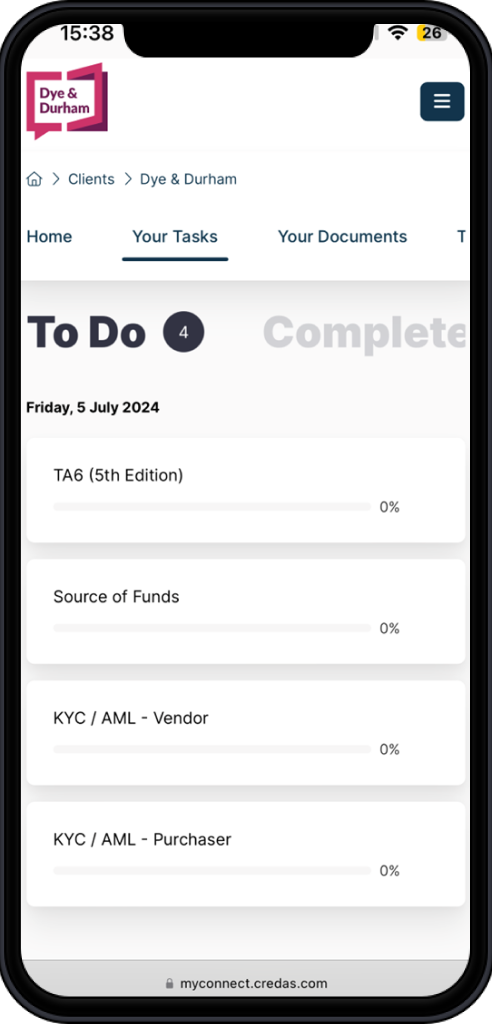
- Once you have logged in you will see a list of 'To Do' tasks that you have been assigned, and the percentage of completion.
- Click on the task you wish to complete.
E-Sign
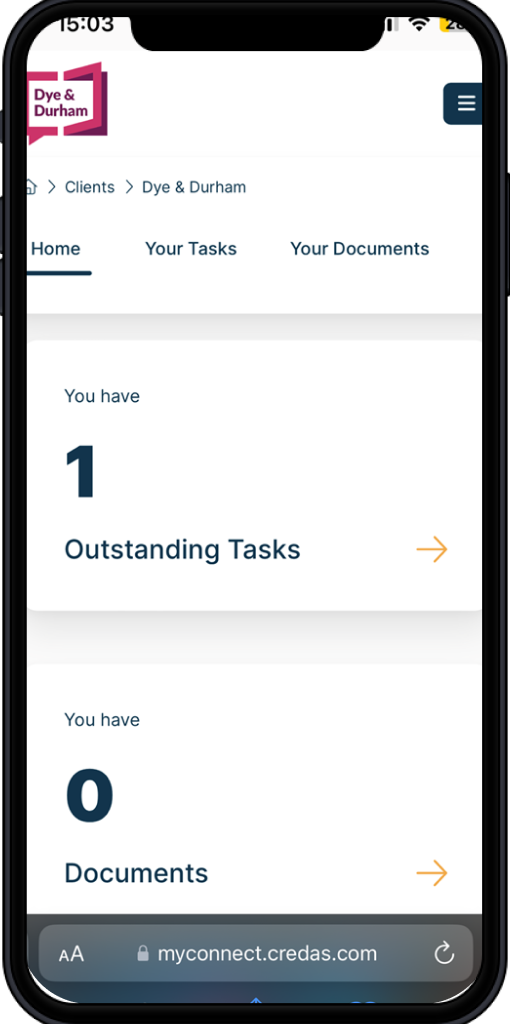
If you have been assigned an e-sign, you dashboard will say you have one document outstanding.
You will need to review the document and once you are ready, click 'Sign now' and you will be able to sign the document either by drawing, typing or uploading your signature.
We recommend also saving a copy of this PDF so you have a personal copy.
TA Forms
TA forms are Transaction Information requests, they present a selection of questions related to the TA form you have been asked to complete.
- Answer these questions to the best of your ability. You will be able to leave and come back to any questions if you need to find further information, just do not forgot to press Save first
- Once the questions are answered, you will be presented with a PDF copy of the form with your answers to review.
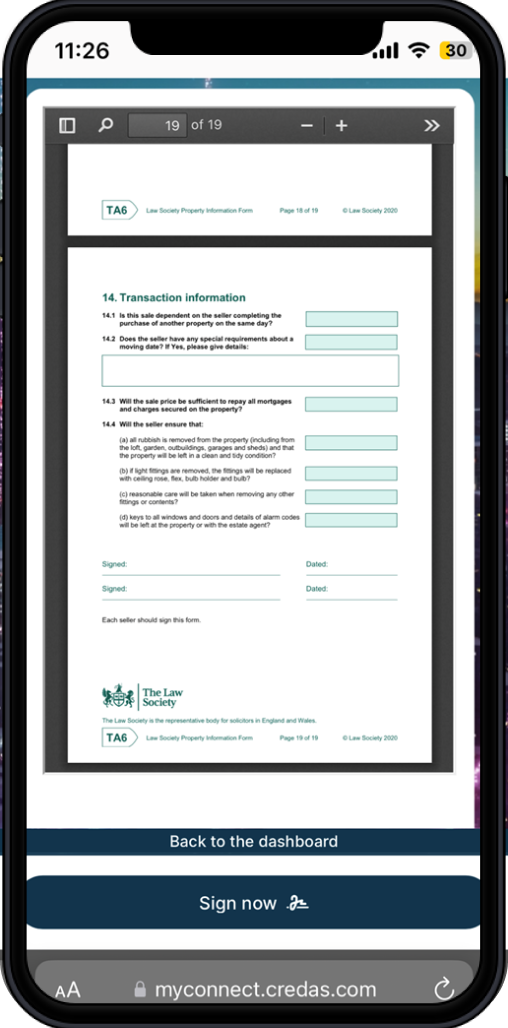
- Once complete click 'Sign now' and you will be able to sign the document either by drawing, typing or uploading your signature.
- We recommend also saving a copy of this PDF so you have a personal copy.
If you are struggling with any of the questions on the TA form, please contact your Law Firm who will be able to assist you.